Online PS Filter Tutorial: Create Beautiful Photo Styles in 3 Steps
Want to learn how to add filters with online PS? This guide explains how to use online tools to add beautiful filter effects to photos, easily creating stunning styles - perfect for beginners.
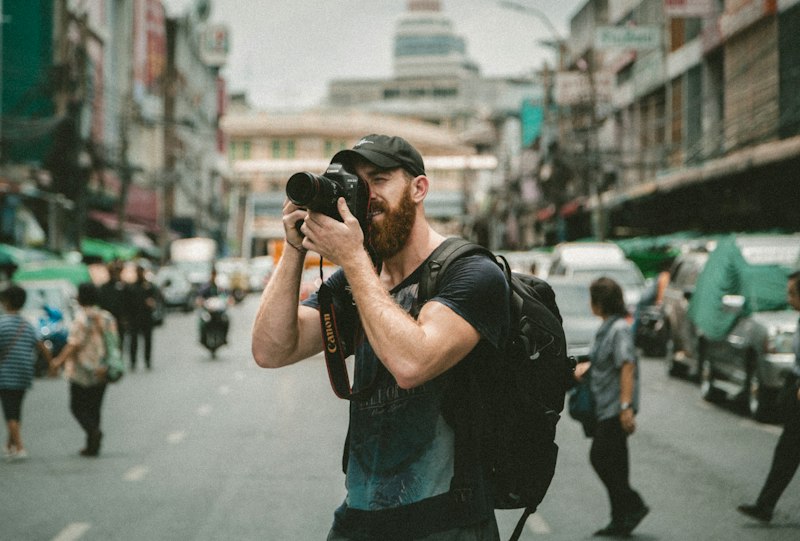
For modern people, sharing beautiful photos has become part of life. Whether showing off food, selfies, or travel scenery, a photo with unique style and beautiful colors always attracts likes from friends first. Actually, you don’t need to install heavy software for editing and adding filters - just use an online PS tool and you can easily get it done with a few clicks!
Why Choose Online PS for Adding Filters?

In the past, editing photos required opening a computer and installing professional software. Now, you can just open a browser and start working. Online PS platforms have obvious advantages:
- Zero barrier to use: No download or installation required, just open the webpage
- Rich filter library: Built-in various style filters, one-click switching
- Real-time preview: See effects instantly when adjusting parameters
- Cross-device editing: Works on phones, computers, and tablets
- Completely free: Core features require no payment
- Privacy protection: Images processed locally, not uploaded to servers
Step 1: Choose a Good Online PS Tool

We recommend using 99ue Online PS (99ue.com), a powerful online image editing tool:
- Clean and friendly interface, beginners can quickly get started
- Supports multiple image format imports
- Provides rich filter and color adjustment options
- Smooth operation, fast response
- Supports English interface for easier operation
Open the website and click “Start Editing” to enter the workspace.
Step 2: Apply Filters Flexibly, Transform Your Photos
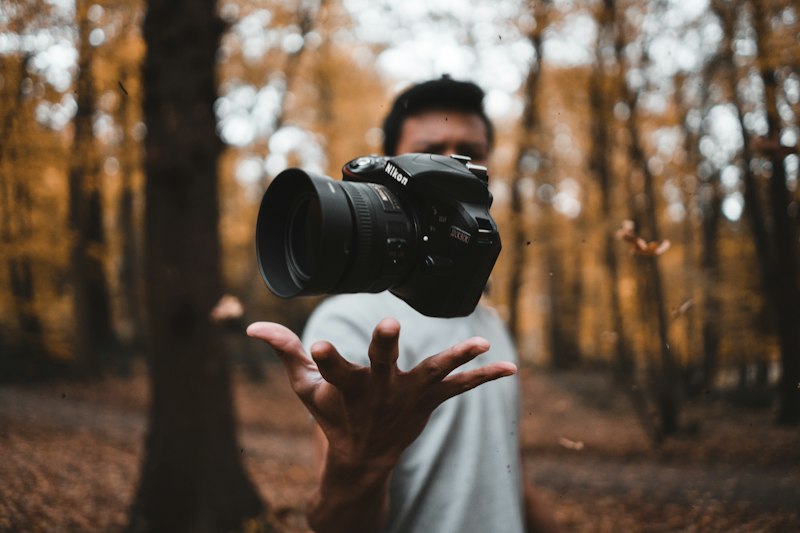
Filters are the key to creating “atmosphere” in photos. Whether it’s fresh Instagram style, vintage film colors, or dreamy blur effects, just click to switch between different filters and preview the new style in real-time.
Common Filter Styles Introduction
1. Fresh and Bright Style
- Increase brightness and contrast
- Boost blue and green saturation
- Suitable for landscapes, daily portraits
2. Vintage Film Style
- Lower saturation
- Add slight grain
- Warm yellow tones
- Suitable for artistic photos
3. Classic Black and White
- Remove color information
- Enhance contrast
- Suitable for portraits, street photography
4. Dreamy Soft Focus Style
- Lower clarity
- Increase exposure
- Soften skin tones
- Suitable for portraits, wedding photos
5. Japanese Fresh Style
- Lower contrast
- Increase brightness
- Add slight cool tones
- Suitable for lifestyle, landscape photos
Applying Filters in 99ue
- Click “Filter” or “Adjust” in the menu bar
- Browse preset filter effects and choose your preferred style
- Fine-tune parameters as needed:
- Brightness/Contrast
- Saturation/Lightness
- Hue/Color Balance
- Sharpen/Blur
- Preview effects in real-time, confirm when satisfied
Step 3: Personalized Fine-tuning for Better Details

After setting the filter, don’t forget to control the details! Use features like “Healing Brush”, “Spot Removal”, “Skin Smoothing”, and “Add Text” to quickly remove small blemishes, then add a heartfelt caption to instantly elevate the photo’s quality.
Recommended Adjustment Workflow
Basic Adjustments:
- Exposure compensation: brighten if too dark, lower if overexposed
- White balance: correct color cast
- Contrast: enhance depth
Color Optimization:
- Saturation: moderately increase color vibrancy
- Hue: fine-tune specific colors
- Color balance: adjust highlight/shadow tones
Detail Processing:
- Sharpening: make edges clearer
- Noise reduction: remove high ISO noise
- Vignette: create atmosphere
Portrait Specific:
- Skin smoothing: smooth skin texture
- Brightening: lighten skin tone
- Face slimming: slight contour adjustment
The entire operation only requires mouse dragging, no complex PS skills needed, making photo editing as simple as changing wallpaper.
How Online PS Works - A Brief Explanation
What people call “online PS” is actually browser-based image processing using modern Web technology:
- Canvas API: Performs pixel-level image operations
- WebGL: Accelerates graphics rendering for smooth performance
- JavaScript: Implements interaction logic
- Local storage: Images don’t leave your device
Taking 99ue Online PS as an example, all processing is done locally in your browser, protecting your privacy while ensuring processing speed. It works smoothly on mobile phones, tablets, and computers.
Filter Usage Tips

- Moderation principle: Don’t stack too many filters, 1-2 is enough
- Scene matching: Choose appropriate style based on photo content
- Unified tones: Maintain overall color harmony
- Preserve details: Avoid over-processing that loses texture
- Compare before/after: Check before and after to ensure improvement
Frequently Asked Questions
Q: Will adding filters with online PS reduce image quality?
A: Reasonable filter use won’t significantly reduce quality. 99ue Online PS supports high-quality export, ensuring minimal quality loss.
Q: Can I use it on my phone?
A: Absolutely. Supports mobile browser access with smooth touch operation. Recommended to use WiFi for faster upload/download speeds.
Q: Can filter effects be stacked?
A: Multiple effects can be stacked, but avoid over-processing to prevent photo distortion. Consider duplicating the layer for backup before processing.
Q: How to save processed photos?
A: Click “File” → “Export”, choose JPG or PNG format to save. Recommend choosing high-quality option for export.
Q: Is batch processing supported?
A: 99ue Online PS supports multi-image editing, you can process multiple photos sequentially. Batch filter feature is in development.
Q: Can filter parameters be customized?
A: Of course. Besides preset filters, you can manually adjust brightness, contrast, saturation, and other parameters to create your own style.

Ultimately, photo editing isn’t about showing off skills - it’s about making each photo carry more beauty and memories. Next time you share a photo, try these 3 steps for easy online editing - you might just get a wave of likes from friends!
Visit 99ue Online PS now - a professional online image editing tool with rich filters to apply with one click, easy photo enhancement, completely free!
99ue is dedicated to providing professional, convenient, and free online image editing services, helping every photo show its most beautiful side.